

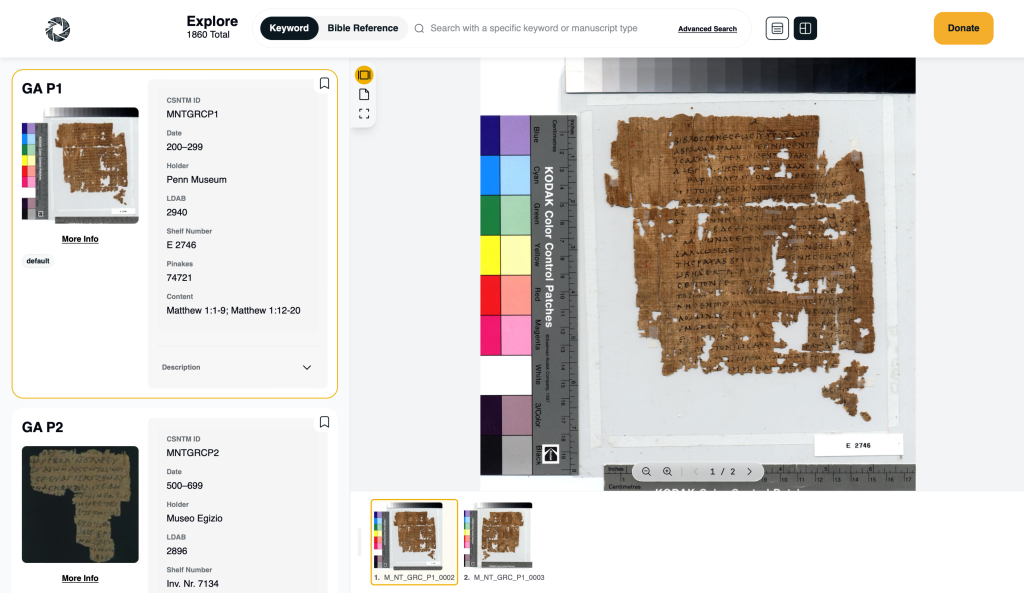
The Interactive View allows you to quickly scan, compare, and move between manuscripts without leaving your search results, making study and comparison significantly more efficient.
This tutorial will show you how to access Interactive View and how to use it effectively.

When to Use Interactive View
Interactive View is especially helpful when you want to:
- Visually scan multiple manuscripts for specific features
- Compare manuscripts more efficiently
- Switch between manuscripts without opening individual detail pages
Rather than working with one manuscript at a time, Interactive View keeps your results and images connected in a single workspace.
Accessing Interactive View
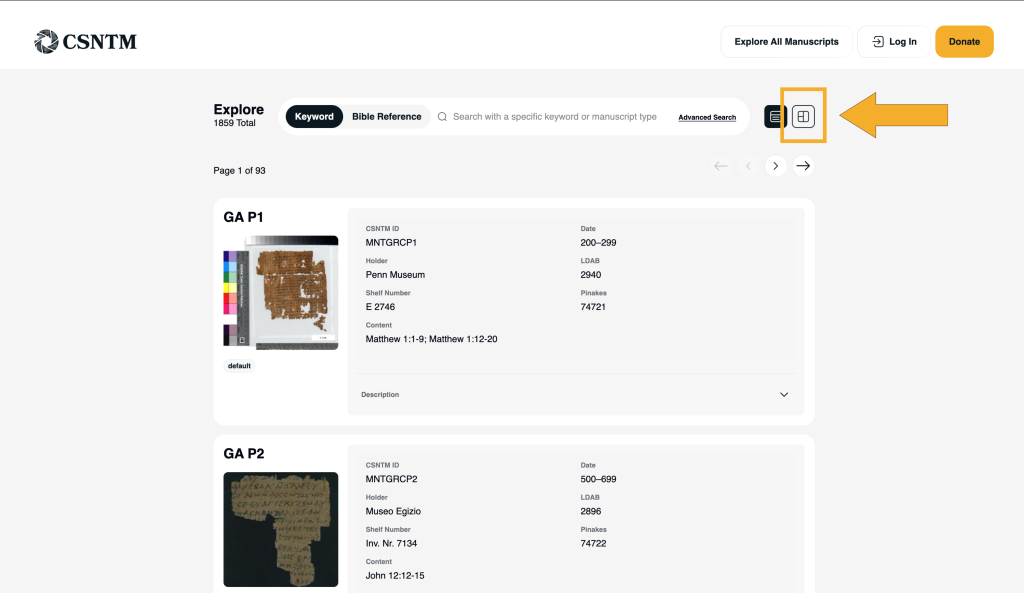
You can enter Interactive View from any search results page.
- Begin a search using the main search bar or Advanced Search filters.
- Once results load, you’ll see a scrollable list of manuscript cards that match your search.
- Click the window pane icon (the icon farthest to the right of the search bar).
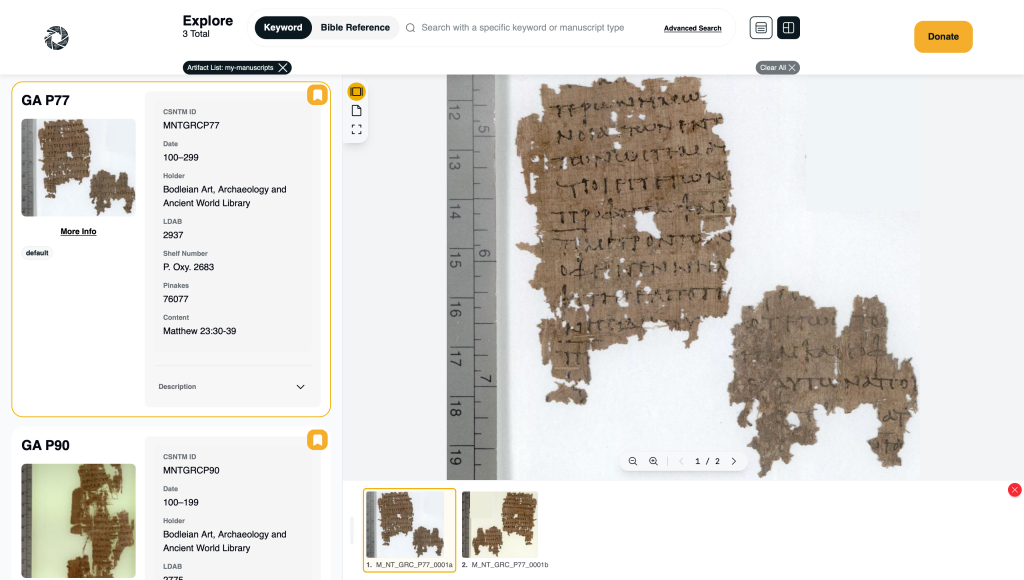
The page will switch from the standard results layout to Interactive View.
Viewing Manuscripts in Interactive View
Once Interactive View is enabled:
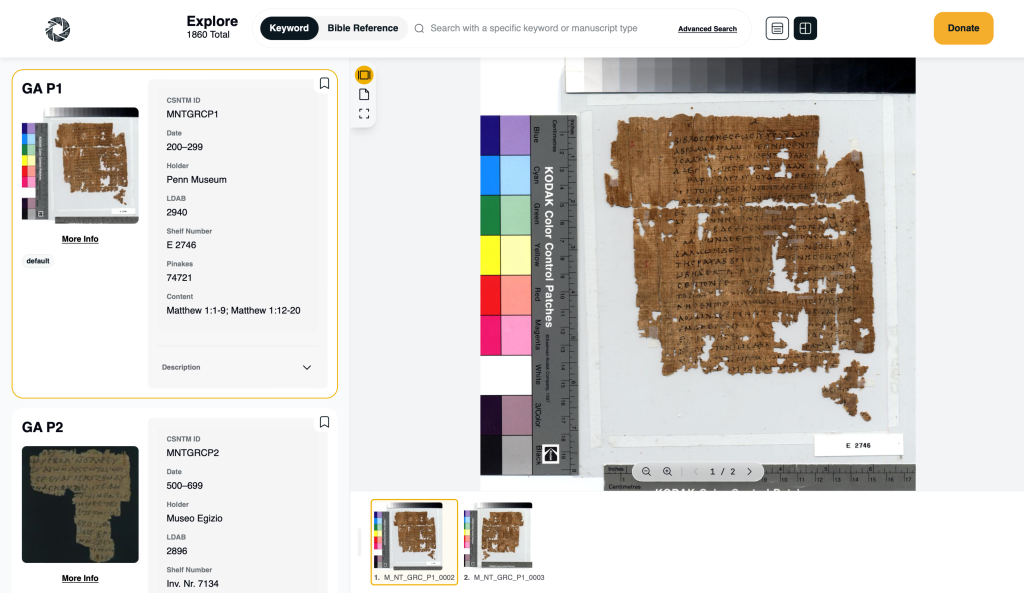
- Click on any manuscript card in the results list.
- The manuscript’s images will load directly in the viewer.
This allows you to move quickly between manuscripts by selecting different cards.

Comparing and Scanning Manuscripts
Interactive View is designed for speed and flexibility:
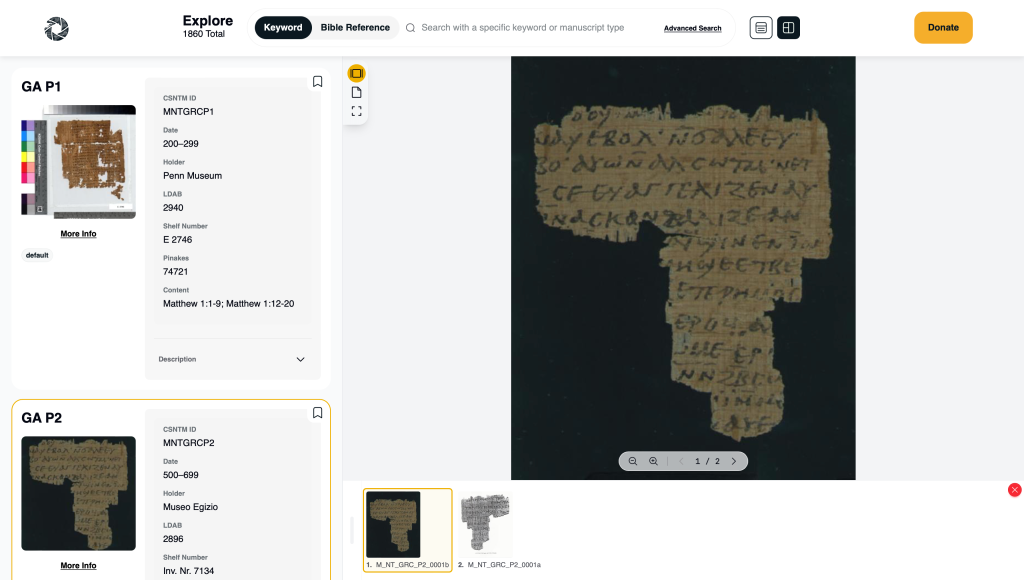
- Select different manuscript cards to instantly switch the images shown in the viewer
- Scan manuscripts for layout, script, marginalia, or other visual features
- Keep your full list of search results visible while exploring images
Viewing Images in Full Screen
For closer inspection of a manuscript image:
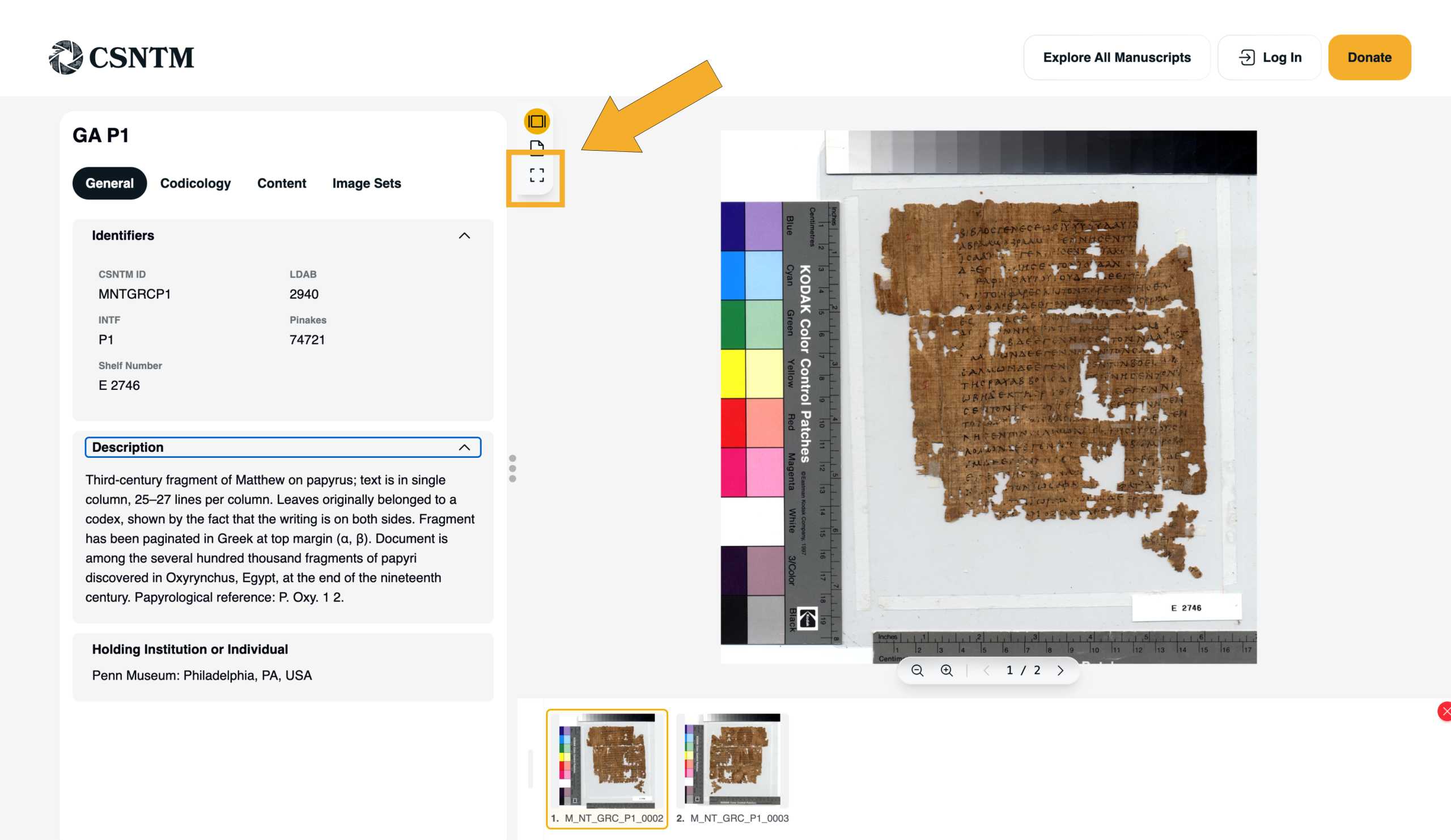
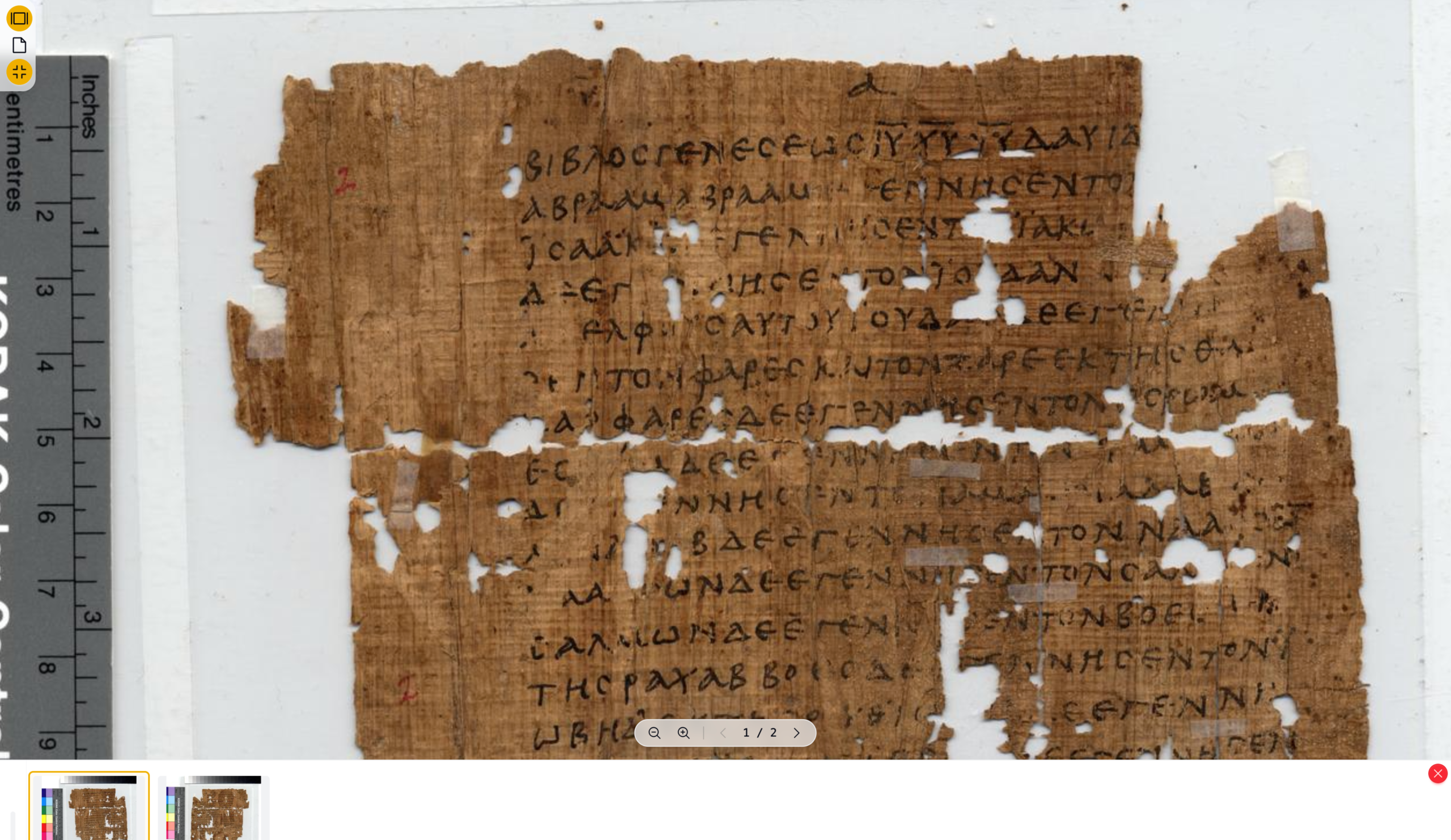
- Click the full-screen icon in the top-left corner of the image viewer.
- The image will expand to fill your screen, allowing for more detailed study.
- Exit full screen at any time to return to Interactive View.

Using Interactive View with Manuscript Lists
Interactive View works especially well with Custom Manuscript Lists.
- Open one of your saved lists from the My Lists menu
- Ensure the list is in Interactive View
- Quickly move between manuscripts you’ve already curated for study or comparison
This combination allows you to build intentional collections and study them efficiently in a single visual workspace.
At any point, you can access a manuscript detail page by clicking More Info beneath the thumbnail image on the left hand side. You can also select available image sets below (e.g. default, high-resolution, low-resolution, Multi-Spectral Imaging, Microfilm).
What to Do Next
If you haven’t already, try pairing Interactive View with:
- Advanced Search to refine your results
- Custom Artifact Lists to organize manuscripts for long-term projects
In the next tutorial, we’ll guide you through creating and managing your own artifact lists.